Managing Workspaces
This section presents information on how to manage workspaces namely viewing active, archived, workspaces. In addition to searching, sorting, deleting workspaces.
Viewing Active Workspaces
In this section, you will learn how to view all the active workspaces in your organization.
To view active workspaces, do the following:
-
Login to the platform.
-
Click the Collaborate module, and then click the Workspaces sub-module.
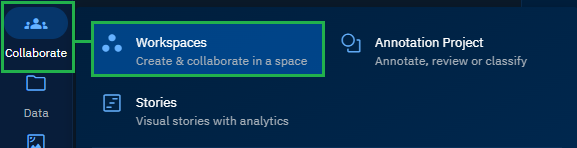
The Workspaces Dashboard page will be displayed.

-
On the Workspaces Dashboard, view all the active workspaces.
Now depending on the following conditions, you can:
-
View your created workspaces (private workspace).
-
View workspaces created by others (public workspace).
-
View workspaces you are part of (group workspace).
-
View and/or manage workspaces based on your role and access rights.
-
New platform users who do not meet any of the preceding conditions will NOT be able to view any workspaces.
Viewing Archived Workspaces
In this section, you will get to know how to view archived workspaces – workspaces that are not in use anymore.
To view the archived workspaces, do the following:
-
Login to platform.
-
Click the Collaborate module, and then click the Workspaces tile.
The Workspaces Dashboard page will be displayed.
- On the Workspaces Dashboard page, click the Archived tab, and then proceed to view and access all the archived workspaces.

Searching for Workspaces
In this section, you will get to know how to search specific workspaces in your organization.
To search for workspaces, do the following:
-
Login to the platform.
-
Click the Collaborate module, and then click the Workspaces sub-module.
The Workspaces Dashboard page will be displayed.
-
On the Workspaces Dashboard, type a workspace name in the Search Workspace search bar.

The platform starts displaying search results instantly as you type the name of the workspace
Importing Workspaces
In this section, you will get to know how to import workspaces from your local computer to the platform.
Pre-requisities: Ensure that you have a workspace ready to import.
To search for workspaces, do the following:
-
Login to the platform.
-
Click the Collaborate module, and then click the Workspaces sub-module.
The Workspaces Dashboard page will be displayed.
-
On the Workspaces Dashboard, click the Import button.

The Import Workspaces dialog box is displayed.
-
In the Import Workspaces dialog box, click the Browse button, navigate to the location on your local compouter, select the workspace (.zip) file, and then click the Import button.

The platform imports the workspace successfully.
-
View the imported workspace in the Workspaces Dashboard.

Filtering Workspaces
In this section, you will get to know how to filter workspaces it find a workspace that fits your criteria.
You can apply these filters individually or combine them to refine your results.
To filter workspaces, do the following:
-
Login to the platform.
-
Click the Collaborate module, and then click the Workspaces sub-module.
The Workspaces Dashboard page will be displayed.
-
On the Workspaces Dashboard, click the Filter icon.

The Filters dialog box is displayed.
-
In the Filters dialog box, do the following:
- Click the Created By drop-down list and select team member or members to view public workspaces created by them.
- Click the NATO Categories drop-down list and select the category or categories to view workspaces of that particular category.
- Click the Targets drop-down list and select a target or targets to view workspaces of that particular target.
- Click a Start Date and End Date to view workspaces created in the specified time frame.
The platform starts displaying search results instantly as apply the preceding filters.
Sorting Workspaces
In this section, you will get to know how to sort and view workspaces by date and the name of the workspace.
By default, the Workspaces Dashboard always displays the latest and most current workspaces first.
To sort out workspaces, do the following:
-
Login to the platform.
-
Click the Collaborate module, and then click the Workspaces sub-module.
The Workspaces Dashboard page will be displayed.
-
On the Workspaces Dashboard, click the Sort by drop-down list, do the following:
-
Select the Date option to sort workspaces created by date. Use the Up and Down arrow to sort workspaces in ascending or descending order.
-
Select the Name option to sort workspaces by name of team members in your organization. Use the Up and Down arrow to sort workspaces in ascending or descending order.

Additionally click the ⬇️ to sort direction (latest to oldest)
Editing Workspaces
In this section, you will learn how to edit a workspace in your organization.
To edit a workspace, do the following:
-
Login to the platform.
-
Click the Collaborate module, and then click the Workspaces sub-module.
The Workspaces Dashboard page will be displayed.
-
On the Workspaces Dashboard, locate the workspace that you want to edit, click the vertical three-dots menu or More Options menu of the workspace, and then click the Edit option.
The Edit Workspace dialog box is displayed.
-
In the Edit Workspace dialog box, make the appropriate changes as per your requirement and then click Save.
Archiving Workspaces
In this section, you will learn how to archive a workspace in your organization.
To archive a workspace, do the following:
-
Login to the platform.
-
Click the Collaborate module, and then click the Workspaces sub-module.
The Workspaces Dashboard page will be displayed.
-
On the Workspaces Dashboard, locate the workspace that you want to edit, click the vertical three-dots menu or More Options menu of the workspace, and then click the Archive option.
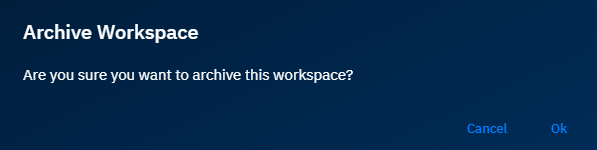
The Archive Workspace dialog box is displayed.
-
In the Archive Workspace dialog box, click OK to confirm archiving of the workspace.
Deleting Workspaces
In this section, you will learn how to delete a workspace in your organization.
To delete a workspace, do the following:
-
Login to the platform.
-
Click the Collaborate module, and then click the Workspaces sub-module.
The Workspaces Dashboard page will be displayed.
-
On the Workspaces Dashboard, locate the workspace that you want to edit, click the vertical three-dots menu or More Options menu of the workspace, and then click the Delete option.
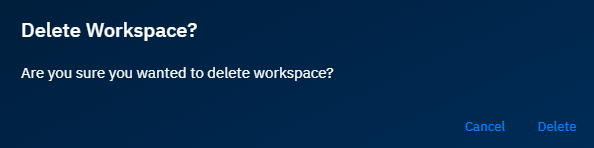
The Delete Workspace dialog box is displayed.
-
In the Delete Workspace dialog box, click OK to confirm archiving of the workspace.
Marking as Favorite
In this section, you will learn how to mark a workspace as favourite.
To archive a workspace, do the following:
-
Login to the platform.
-
Click the Collaborate module, and then click the Workspaces sub-module.
The Workspaces Dashboard page will be displayed.
-
On the Workspaces Dashboard, locate the workspace that you want to mark as favourite and then proceed to click the ☆ icon.
Viewing User List
In this section, you will learn how to view the user list of a workspace with closed group privacy option.
To view user list, do the following:
-
Login to the platform.
-
Click the Collaborate module, and then click the Workspaces sub-module.
The Workspaces Dashboard page will be displayed.
-
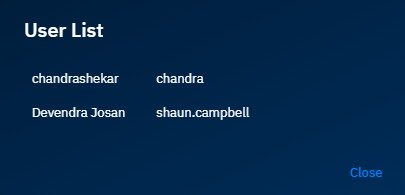
On the Workspaces Dashboard, locate the workspace that displays the number of users (closed group privacy) who have access to the workspace, click the vertical three-dots menu or More Options menu of the workspace, and then click the User List option.
The User List dialog box is displayed.
-
In the User List dialog box, view all the users who have the access to the workspace.